
User guide
Backup & restore
Export a local file or back up automatically to your own Google Drive.
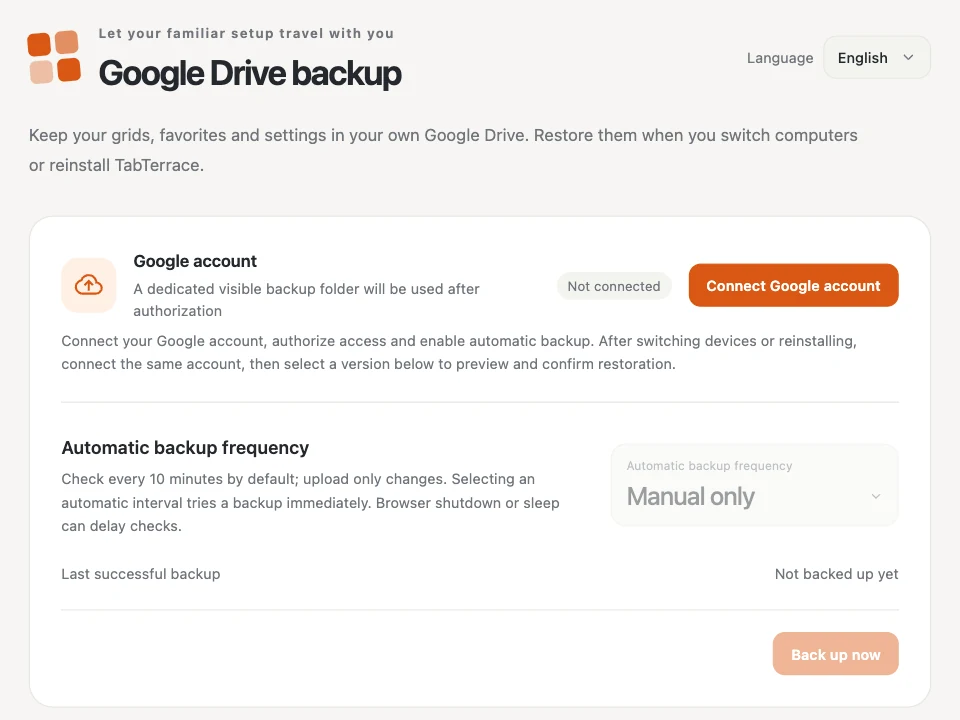
Open Settings → Data & backup.
Local backup file
No Google account needed. Export JSON saves a copy of your grids, favorites, tasks, notes and settings. Import JSON previews a backup (up to 15 MiB) and merges it with what you have.
Google Drive backup
- Choose Connect Google account and allow access. TabTerrace only sees the files it creates, in a visible TabTerrace Backup folder in your own Drive.
- Choose 10, 30 or 60 minutes under Automatic backup frequency, or Manual only and use Back up now. Only changes are uploaded.
- On a new computer, connect the same account and choose a version to preview and restore.
For each computer, TabTerrace keeps the latest 10 versions and one for each of the past 7 days. Restoring merges with your local data instead of replacing it.