
User guide
Split view
Pair any two tabs in Chrome's built-in split view — every site works there.
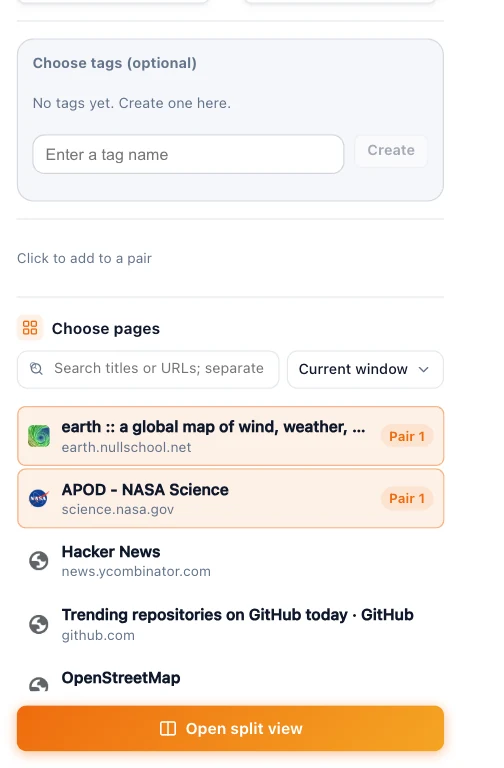
Split view uses Chrome's own side-by-side mode, so each page stays in its own tab. It works with every site, including the few that can't go in a grid. It needs a recent version of Chrome (155 or later).
Open a split view
- Open the popup (or Manage on the dashboard) and choose Split mode.
- Click pages to fill Left page and Right page, or drag them into the dashed boxes. Optionally type a name under Name (optional). Use + Add a pair to make several at once.
- Click Open split view.
You can also select exactly two tabs in Chrome's tab strip and press Alt + Shift + S (Mac: ⌥ Option + Shift + S).
Name, switch and unsplit
Every split view is saved as a project; rename it any time with Edit under All projects. While a split is open, its card there has two more buttons:
- Unsplit turns the pair back into two separate tabs and keeps the project.
- To grid mode reloads both pages in a two-cell grid. From a two-cell grid with one page in each cell, To split mode (in the grid's toolbar or under All projects) does the reverse. Playback position and unsaved input don't carry over.