
User guide
Tab grid
Put up to nine live web pages side by side in a single tab.
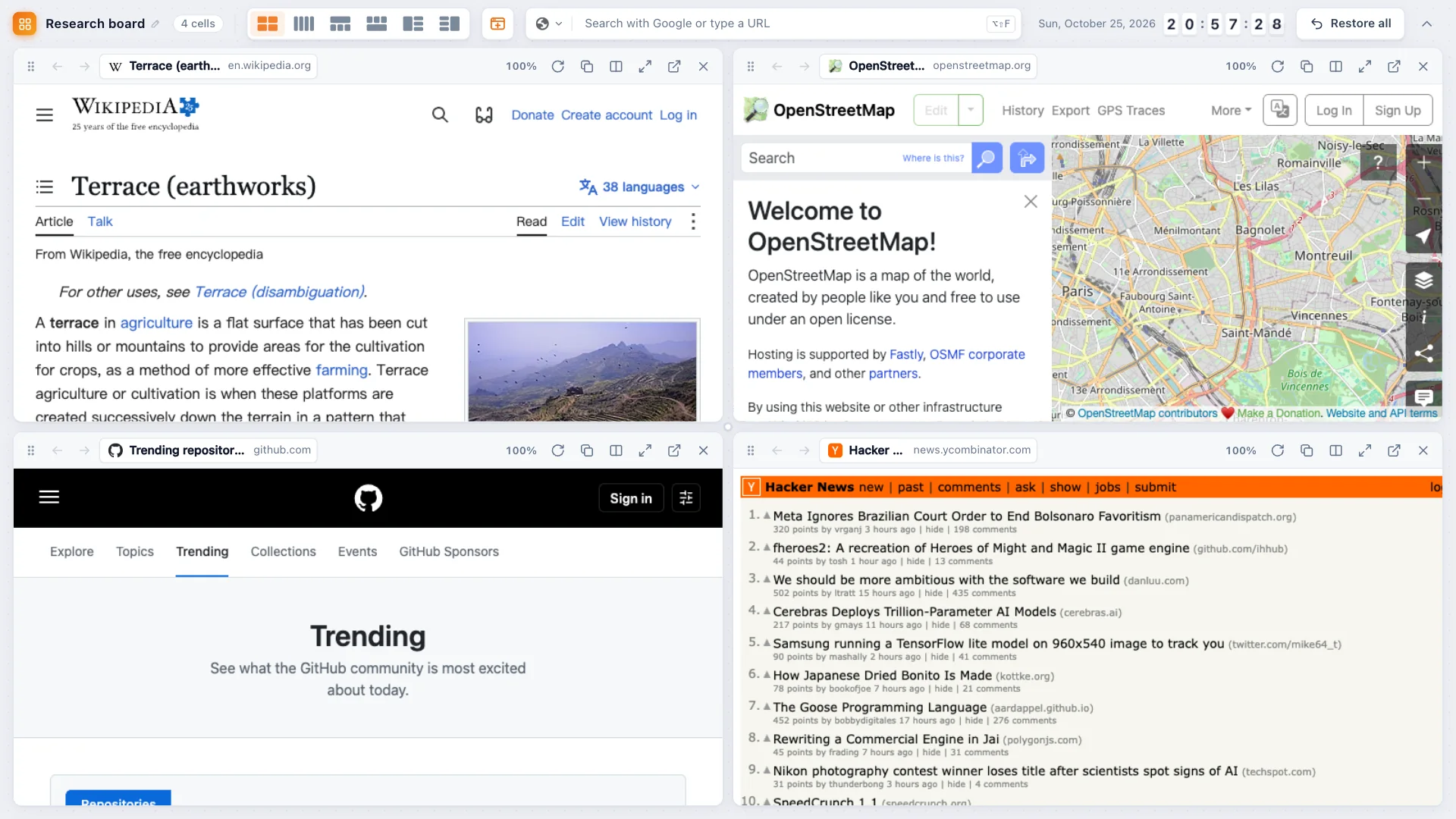
A grid holds up to 9 cells. Every cell is a real page: scroll it, click links, sign in, fill in forms and watch video. When you merge tabs into a grid the original tabs close — you can turn them back into tabs at any time.
Create a grid
- From the popup or dashboard: choose Grid, select pages, pick a layout and click Merge into grid. Pages in the same Chrome tab group share one cell.
- From the tab strip: select two or more tabs and press Alt + Shift + G (Mac: ⌥ Option + Shift + G). See Shortcuts.
- From any page: right-click and choose Put this page in a grid, or right-click a link and choose Open link in a grid. Pick + New grid or an open grid.
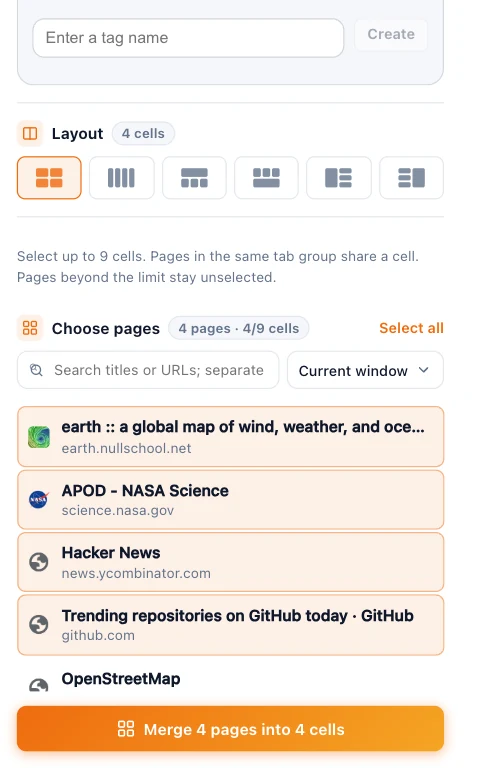
Inside a grid
- Add pages (top toolbar) picks more of your open tabs. Or type a URL or search in the search box: Enter opens it in a new cell, ⌘/Ctrl + Enter opens it in the selected cell. Press / or ⌘/Ctrl + K to jump to search.
- Click the grid's name to rename it.
- Each cell has its own Back and Forward buttons, plus Reload, Copy URL, page zoom, Maximize (press Esc to restore), Restore as tab and Close.
- A cell can hold several pages as tabs. Drag a page's tab onto another cell to move it there, or to the top to give it its own cell.
- Restore all turns every page back into a normal tab and closes the grid.
- Hide toolbar gives the cells the full height.
Sites that can't be embedded
A few sites refuse to appear inside other pages. TabTerrace tells you, and offers to Open in new tab or Split with grid using Chrome split view.